Subtotal $0.00

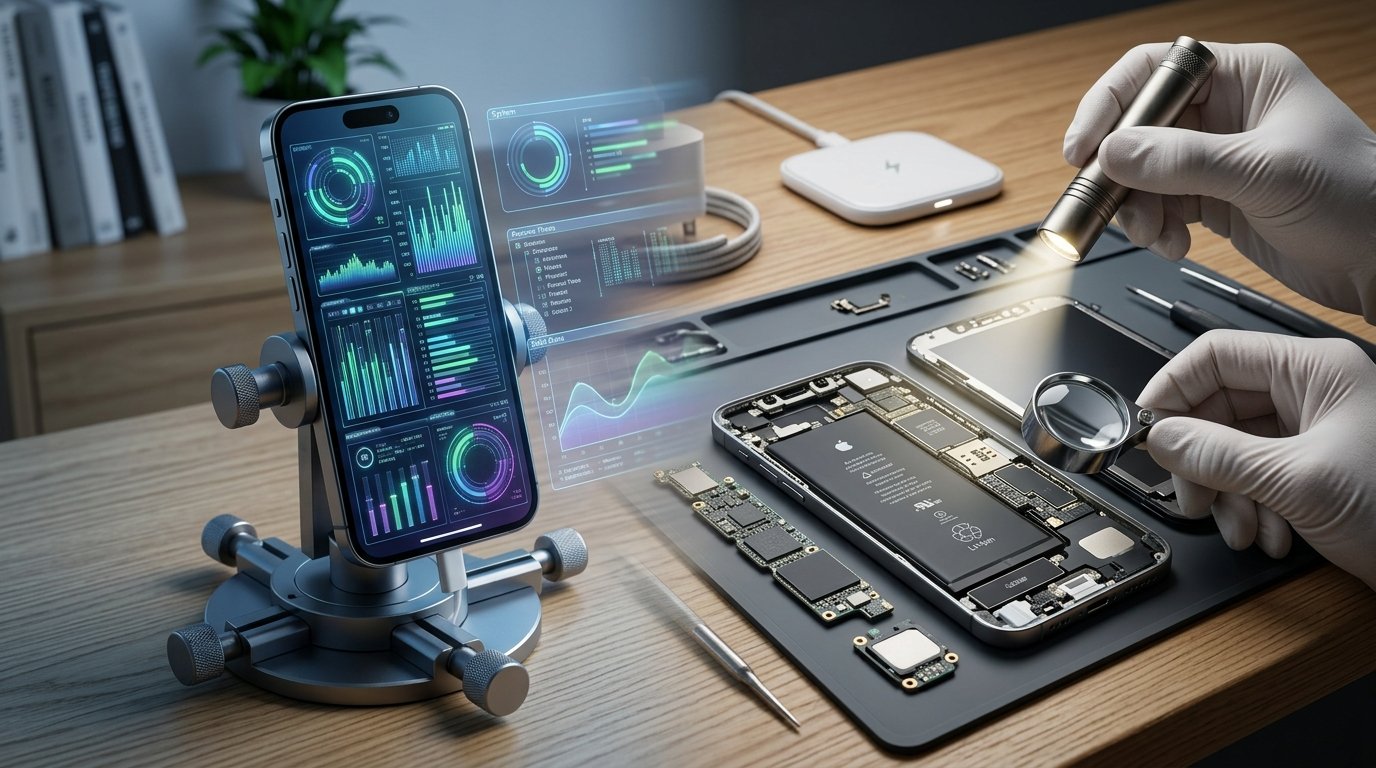
Phone problems can appear suddenly and without much warning. One moment, everything works normally. The next, an app freezes, the screen stops responding, or the battery drains quickly. These problems can have different causes. Some originate from physical components, while others come from software or system settings. Understanding the difference can help you choose the right troubleshooting approach.
A charging issue provides a useful example of this distinction. If basic troubleshooting fails, phone charging port repair Edmonton may become relevant when physical damage affects the connection. However, charging failures can also result from software glitches, faulty accessories, or battery problems. Therefore, identifying the underlying symptoms is important before assuming that a component needs replacement.
What Is a Hardware Problem?
Hardware refers to the physical components inside and outside your phone. These include the display, battery, charging port, cameras, speakers, microphones, buttons, and internal circuit boards.
Hardware problems can result from physical damage or normal wear. Drops and impacts are common causes. Liquid exposure can also affect internal components.
Some hardware problems develop gradually. For example, a battery may lose capacity after years of regular use. Similarly, charging ports can become worn after repeated cable connections.
Other hardware failures appear suddenly. A phone may stop responding after a significant impact. A damaged display may also develop lines or black areas without warning.
What Is a Software Problem?
Software controls how your phone’s hardware operates. It includes the operating system, applications, settings, drivers, and background processes.
Software problems can occur after updates or application installations. A buggy app may consume excessive resources. Likewise, a system process may become unstable.
These issues can cause symptoms that resemble hardware failure. For instance, a software problem may make the touchscreen appear unresponsive.
Therefore, symptoms alone do not always provide an immediate answer. A few basic tests can help separate software behavior from physical failure.
Start by Looking for a Pattern
The pattern of the problem can provide useful information. Ask when the issue occurs and what happens beforehand.
Does the problem happen constantly? Does it appear only inside one application? Does restarting the phone temporarily fix it?
A problem that appears only within one app may involve software. On the other hand, an issue affecting the entire device deserves broader investigation.
Also, consider whether the problem began after an event. A recent drop, water exposure, or software update can provide an important clue.
Keeping track of these details makes troubleshooting easier.
Restart the Phone
Restarting is one of the simplest software troubleshooting steps. It closes active processes and reloads the operating system.
Temporary system glitches can disappear after a restart. Therefore, restarting can be a useful first test.
If a problem disappears completely after restarting, software may be involved. However, this does not prove that hardware is working perfectly.
Some hardware problems can also behave intermittently. Consequently, look for additional patterns before reaching a conclusion.
Check Whether One App Causes the Problem
Suppose your phone freezes whenever you open one particular application. That pattern points toward a possible software issue.
First, close the application and reopen it. Then check whether the problem continues.
You can also update the application if an update is available. Developers frequently release updates that address bugs and compatibility problems.
If the issue affects only one application, avoid assuming that the phone itself has failed.
However, if several unrelated applications experience the same issue, the operating system may require further attention.
Look for Problems Across the Entire System
System-wide problems deserve closer attention. For example, the touchscreen may stop responding throughout the phone.
Other examples include repeated system crashes or frequent unexpected restarts. These symptoms can have both software and hardware causes.
Check whether the problem continues after restarting the phone. Then consider available system updates and recent software changes.
If the issue remains across multiple functions, hardware should also be considered.
Test the Phone in Safe Mode When Available
Some Android devices provide a safe mode that disables third-party applications temporarily. This feature can help identify whether an installed app is causing problems.
If the phone works normally in safe mode, a third-party application may be responsible.
You can then review recently installed or updated applications. Remove suspicious apps one at a time when appropriate.
Not every phone provides safe mode in the same way. Therefore, follow the instructions specific to your device.
Examine Physical Damage
Physical inspection can provide important clues about hardware problems. Look carefully at the phone’s screen, frame, buttons, and ports.
Cracks, dents, gaps, or bent areas can indicate physical damage. A damaged frame may also affect internal components.
Pay particular attention after a drop. Even if the phone looks mostly normal, an impact can affect internal connections.
Likewise, check for signs of liquid exposure. Moisture can create delayed hardware problems.
Visible physical damage does not always explain every symptom. However, it increases the likelihood that hardware requires attention.
Check the Charging System
Charging problems can be caused by several components. The cable, power adapter, charging port, battery, and software can all play a role.
Start by testing a known-working cable and adapter. Also, inspect the charging port for visible debris.
If the phone charges inconsistently, observe how the connector behaves. A loose connection may indicate a worn port or damaged cable.
If charging fails across multiple accessories, the phone itself may require further testing.
Software can also affect charging behavior. Some devices limit charging under certain temperature or battery conditions.
Pay Attention to Battery Behavior
Battery problems can be confusing because they may resemble software issues. An application running in the background can drain power quickly.
However, an aging battery can also lose charge rapidly. It may also cause unexpected shutdowns.
Check the battery information available in your phone’s settings. Some devices provide battery health or usage statistics.
Look for applications consuming unusually high amounts of power. If one app appears responsible, software troubleshooting may help.
If battery performance remains poor across normal usage, the battery itself may require inspection.
Test the Touchscreen Carefully
A touchscreen that stops responding can involve software or hardware. First, determine whether the entire display is affected.
If only one application stops responding, software becomes a stronger possibility. If certain areas remain consistently unresponsive, hardware may be involved.
Restart the device and test the screen again. Remove screen protectors that may be damaged or improperly installed.
Also, make sure the screen is clean and dry. Moisture can interfere with touch detection.
If specific areas remain unresponsive after basic troubleshooting, professional inspection may be appropriate.
Listen for Audio Problems
Speaker and microphone issues can also have different causes. A software setting may accidentally mute or redirect sound.
Check volume levels and connected Bluetooth devices first. Your phone may be sending audio to another connected device.
Restart the phone and test different applications. Try a music app, video, and phone call if possible.
If sound remains distorted across multiple functions, hardware could be involved.
Physical debris can also affect speakers and microphones. Avoid pushing sharp objects into small openings.
Watch for Overheating
Phones naturally generate some heat during demanding tasks. Gaming, video recording, and charging can increase temperatures.
However, unusual heating can indicate a problem. A software process running continuously may place excessive load on the processor.
Check battery usage to identify applications consuming unusual resources. Close unnecessary applications and restart the phone.
If overheating continues during light use, hardware should also be considered. Battery or internal component problems can contribute to excessive heat.
Avoid using a phone that becomes dangerously hot. Disconnect it from power and allow it to cool safely.
Consider Recent Updates
Software updates can sometimes introduce temporary compatibility issues. They can also resolve existing bugs.
If a problem begins immediately after an update, record the timing. Check whether other functions remain normal.
Application updates can create similar situations. An app may not work correctly with a newly updated operating system.
Therefore, timing can provide useful troubleshooting information. However, it does not automatically prove that an update caused the problem.
Consider Recent Physical Events
Recent physical events can provide equally valuable clues. Think about what happened before the problem appeared.
Did the phone fall? Was it exposed to rain? Did it become unusually hot?
Was the charging cable pulled sharply? Did the device experience pressure inside a bag or pocket?
These events can point toward physical damage. However, delayed symptoms are possible, especially after liquid exposure.
Documenting what happened can help a technician understand the issue more quickly.
Use a Simple Troubleshooting Process
A structured process makes diagnosis easier. Start with the simplest possible explanations.
First, restart the phone. Next, test different accessories when relevant.
Then inspect the device for visible physical damage. Check settings, recent updates, and application behavior.
Afterward, test whether the issue affects one function or the entire device.
This approach helps separate isolated software problems from broader hardware symptoms.
Avoid Unnecessary Repairs
Replacing a component without identifying the cause can waste time and money. Therefore, diagnosis should come before replacement whenever possible.
For example, replacing a charging port will not solve a faulty cable. Likewise, reinstalling software will not repair a physically damaged display.
Professional diagnosis can be useful when the cause remains unclear. A technician can test individual components and inspect internal connections.
This becomes especially important when liquid exposure or physical damage is involved.
When Professional Inspection Makes Sense
Some problems should not be handled through repeated experimentation. Persistent charging failures deserve attention when basic checks fail.
The same applies to repeated shutdowns, severe overheating, and unresponsive screens.
Liquid exposure also requires caution. Internal corrosion may develop even when the phone initially appears functional.
Professional inspection can identify problems that are difficult to see externally. It can also reduce the risk of causing additional damage.
Final Thoughts
Distinguishing hardware problems from software problems is not always straightforward. Many symptoms can have more than one possible cause.
Software issues often relate to applications, settings, updates, or temporary system processes. Hardware issues are more commonly associated with physical damage, wear, or component failure.
Still, these categories can overlap. A structured troubleshooting process can help narrow down the possibilities.
Start with simple steps such as restarting the device and testing accessories. Then examine recent software changes and physical events.
Most importantly, avoid forcing damaged ports, repeatedly testing unstable connections, or opening the phone unnecessarily.
When basic troubleshooting does not resolve the issue, professional diagnosis can provide a clearer answer. Understanding the difference between hardware and software problems helps you approach phone issues more carefully and efficiently.